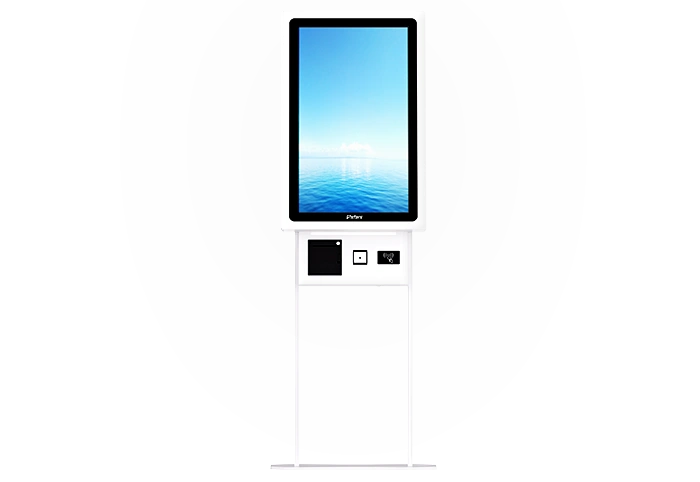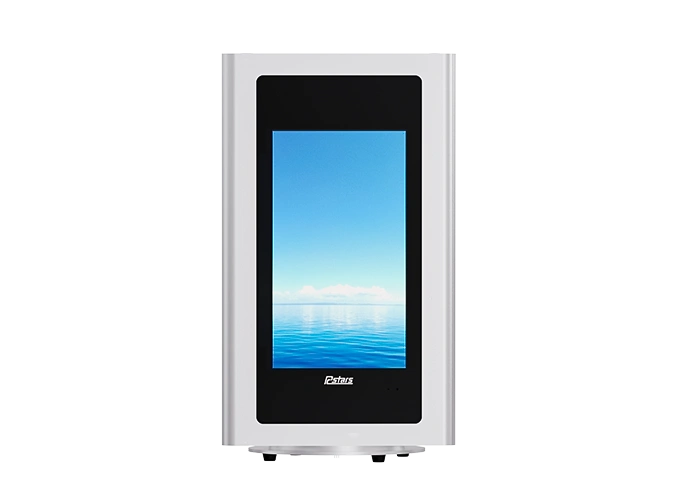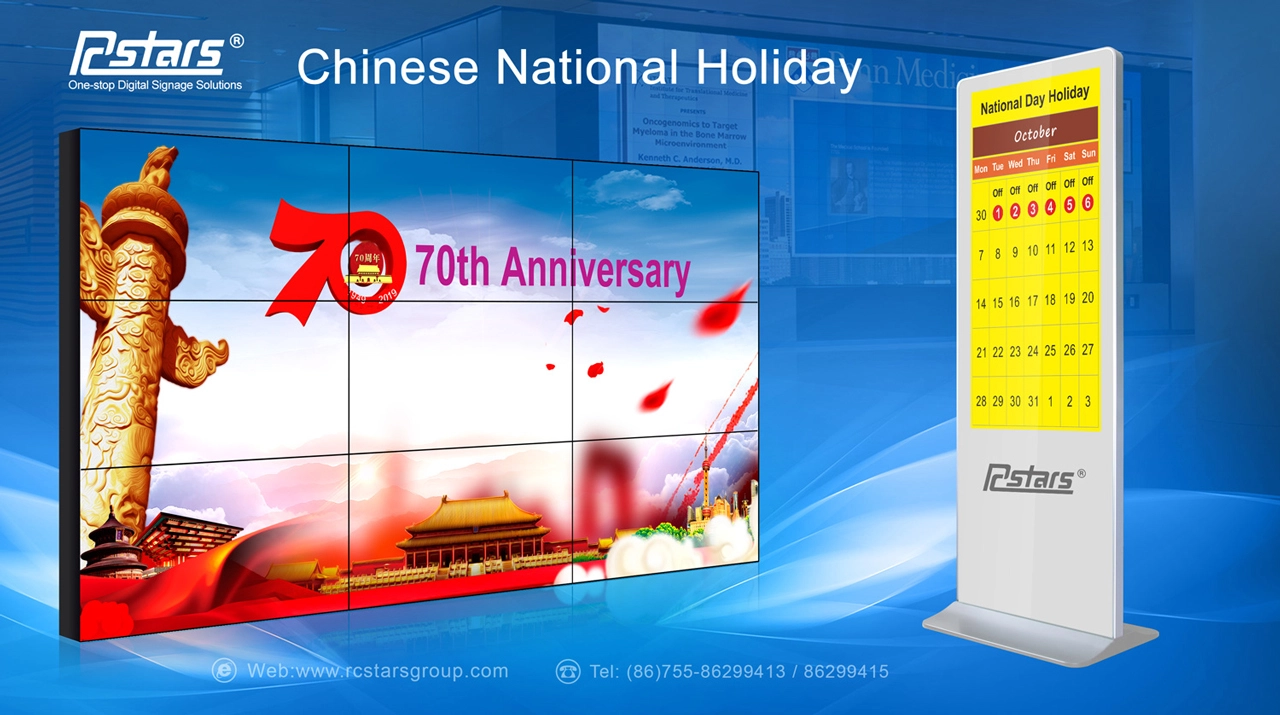
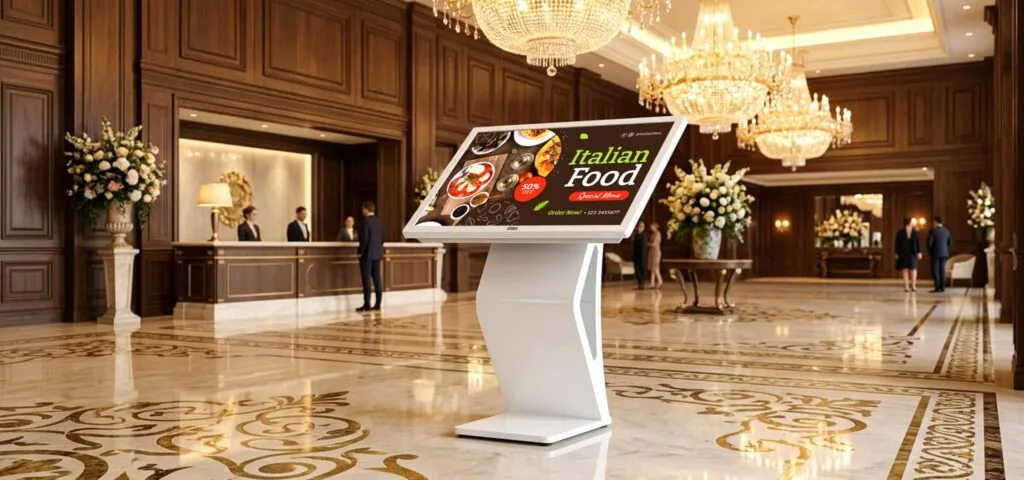
A touch screen kiosk is a self-service hardware terminal that combines a touch-enabled display, an onboard computer, and interactive software so customers can complete tasks — like paying, checking in, or finding directions — without staff assistance. Businesses deploy them in retail, healthcare, hospitality, and transportation to cut wait times, reduce labor costs, and run 24/7 without a person behind the counter. The rest of this guide breaks down how they work, the main types, and how to choose the right one.
How Does a Touch Screen Kiosk Work?
The interaction sequence is straightforward, but it’s worth mapping out because most competing guides skip this step entirely:
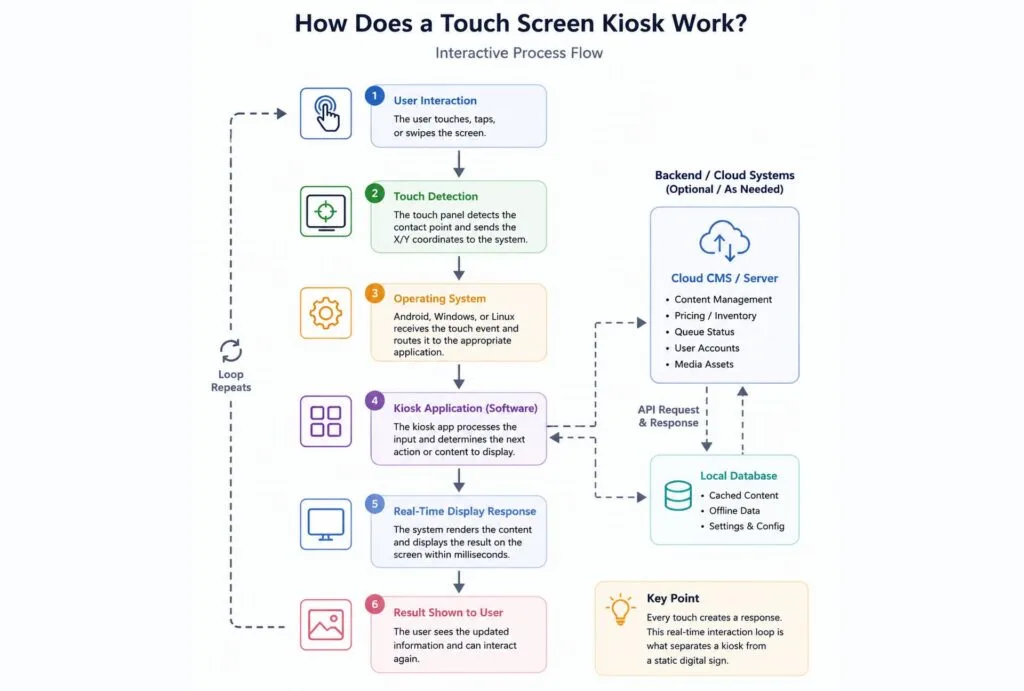
When a user touches the screen, the touch panel detects the input location and sends the coordinates to the kiosk’s operating system, such as Android or Windows. The operating system then forwards the command to the kiosk application, which processes the request locally or connects with backend systems and cloud platforms for updated information such as pricing, inventory, queue status, or digital content. The processed information is rendered on the display within milliseconds, creating an interactive experience that differentiates touch screen kiosks from traditional digital signage.
Types and Uses of Touch Screen Kiosks
Kiosks are generally categorized by function rather than hardware, since most manufacturers can adapt the same chassis to run different software.
| Type | Function | Typical Deployment |
| Self-Service Ordering Kiosks | Integrate a payment terminal (card reader, NFC, or QR scanner) directly into the touch interface for order placement and checkout | Quick-service restaurants, retail stores |
| Wayfinding Kiosks | Display interactive maps and directories so visitors can locate a store, gate, or department without asking staff | Malls, airports, hospitals |
| Information Kiosks | General-purpose units providing details on products, services, schedules, or local attractions | Tourism centers, corporate lobbies, museums |
| Check-In Kiosks | Let visitors register, print boarding passes or room keys, and complete intake forms before reaching a staffed counter | Airports, hotels, clinics |
| Interactive Advertising Kiosks | Blend digital signage with touch interactivity — browsing a catalog, watching a product video, or scanning a code for a promotion | Shopping malls, storefronts, entertainment venues |
| Bill Payment Kiosks | A narrower category focused purely on bill payment (utilities, parking, fines), often unattended | Parking garages, government offices, outdoor lobbies |
Note: Self-Service Ordering Kiosks and Bill Payment Kiosks both handle payment, but they differ in purpose — one drives a purchase (retail/F&B), the other settles an existing charge (utilities, fines, parking). This distinction matters when choosing hardware, since ordering kiosks need a richer product-browsing interface while payment-only kiosks can prioritize a simpler, transaction-focused UI.
Benefits of Touch Screen Kiosks
- Reduce labor costs by automating repetitive front-line tasks like order-taking or check-in
- Improve customer experience through faster, self-paced service without waiting in line
- 24/7 service availability that doesn’t depend on staffing hours
- Increase sales through upsell prompts and impulse purchases at the point of interaction
- Collect customer data on usage patterns, popular products, and peak times
- Support digital advertising by turning idle screen time into promotional space
What are the disadvantages of interactive Touchscreen kiosks?
Interactive kiosks offer a lot of value, but no solution is without trade-offs. Buyers should weigh these before purchasing:
- Initial investment — hardware, software licensing, and installation carry upfront cost
- Maintenance — touch panels and payment modules need periodic servicing
- Software updates — CMS and OS updates must be managed to avoid security gaps
- Environmental exposure — for units placed outdoors or in semi-exposed spots, heat, moisture, and direct sunlight can degrade unprotected hardware (indoor kiosks in climate-controlled spaces largely avoid this)
- Accessibility considerations — screen height, language options, and ADA compliance need planning
Modern commercial kiosks solve many of these issues through industrial-grade components, remote device management, and weatherproof designs where needed — the gap between “a touch screen kiosk” and “a kiosk that survives five years in the field” comes down almost entirely to build quality.
How to Choose the Right Touch Screen Kiosk
| Factor | What to Look For | Best-Fit Scenarios |
| Indoor vs. Outdoor | Outdoor kiosks need an IP65-rated enclosure, higher brightness, and a wider operating temperature range; indoor units can prioritize slimmer design and lower cost | Indoor: mall directories, hotel lobbies, office visitor check-in; Outdoor: gas stations, parking lots, digital billboards, transit stops |
| Brightness | 400–500 nits is typically enough indoors; outdoor or window-facing installations need 1,500–2,500 nits to stay readable in direct sunlight | Standard brightness: in-store retail, restaurant ordering counters; High brightness: storefront windows facing the street, open plazas, gas stations |
| Touch Technology | PCAP (projected capacitive) offers smoother multi-touch and better durability; IR (infrared) is more cost-effective for larger screens and works with gloved hands | PCAP: banks, hospitals, and other settings needing high touch precision; IR: outdoor or industrial environments, or places requiring glove-friendly operation (e.g. warehouses) |
| Operating System | Android suits most retail and information kiosks; Windows is often required for payment processing or integration with legacy POS systems | Android: self-ordering, information lookup, digital signage; Windows: payment/checkout terminals, banking self-service, ERP/POS integration |
| CMS | Look for remote content push, scheduling, and multi-device management so updates don’t require a technician on-site | Chain stores, multi-location deployments, brands that update promotional content frequently |
| Installation | Floor-standing, wall-mounted, or built-in options should match the traffic flow and available footprint of the location | Floor-standing: high-traffic open areas (mall atriums); Wall-mounted: tight corridors, elevator lobbies; Built-in: custom front desks or checkout counters |
| Warranty | Commercial deployments should carry at least a 2–3 year warranty on the display and touch panel, given continuous public use | Any 24/7 or high-frequency public-facing deployment (airports, subway stations, retail chains) |
| OEM Capability | For buyers deploying at scale, the ability to customize enclosure design, branding, and software integration is often the deciding factor over a stock unit | Chain brands scaling deployment, companies needing consistent visual identity, or requiring special integrations (e.g. membership systems) |
Bottom line: The core logic in choosing a touch screen kiosk is to define the use case first (indoor/outdoor, foot traffic, whether payment is involved), then work backward to hardware specs (brightness, touch technology, ingress protection) and software needs (OS, CMS), and finally decide between a stock unit or an OEM-customized solution based on deployment scale.
Frequently Asked Questions About Touch Screen Kiosks
What is the purpose of a kiosk?
A kiosk allows users to complete tasks independently, such as payments, check-ins, ordering, and information searches, without staff assistance.
Are touch screen kiosks worth it?
Yes. They help businesses reduce waiting times, improve service efficiency, and automate repetitive customer interactions.
How much does a touch screen kiosk cost?
Pricing varies widely based on screen size, touch technology, and enclosure type, ranging from a few hundred dollars for a basic tablet-based unit to several thousand for a fully customized outdoor payment kiosk.
Can touch kiosks be used outdoors?
Yes, provided the unit has a weatherproof enclosure (IP65 or higher), high-brightness display, and a wide operating temperature range built for outdoor exposure.
What is the difference between touch screen and screen touch?
These terms are generally used interchangeably; “touch screen” is the standard industry term, while “screen touch” is a less formal variant with the same meaning.
What is the difference between a touch screen and a non-touch screen?
A touch screen accepts direct physical input from the user, while a non-touch (or “non-touch”) display is view-only and requires a separate input device, like a remote or keyboard, to interact with any content.
Are panel pcs with glove-friendly touch good for outdoor kiosks?
Yes. Panel PCs with glove-friendly touch are ideal for outdoor kiosks, enabling reliable operation in cold weather, industrial environments, and public spaces where users may wear gloves.
Looking for a Commercial Touch Screen Kiosk?
Whether you need an indoor self-service kiosk, outdoor touchscreen kiosk, or fully customized interactive kiosk, RCSTARS provides OEM/ODM commercial touch screen kiosk solutions with customizable screen sizes, brightness levels, mounting options, and integrated modules for global projects.